
### Hi all. A lot of times, we need to download individual folders from a competition because we do not need all the files.
\n\nStep 1:\nIn this competition, I wanted only the JPEG folder. So click the JPEG folder and on the right side you will see a download link which looks like this: \n
Click on the link to start the download. After the download starts, pause it. Click on the arrow (circled) and click pause.
\n\nStep 2\nOpen up downloads. On chrome, the shortcut is Ctrl + J. There, copy the download link of the file being downloaded. Image below for reference \n
Step 3\nWe will now download the file using wget
Open up your editor, and use the following code to download the file
\n\nimport wget\n url = {*Paste copied url here*}\nwget.download(url, 'data_path/train.zip')
A key point to note here is that you have to specify the download path as path/filename.zip. Just providing the path won't work. You can specify any name here. Doesn't have to be the same as Kaggle's name (jpeg.zip). Image below for reference \n
That's all. Now you can extract the file and proceed to train. Same steps for any other folder. Hopefully this helps some fellow practitioners out there 😄
", "messages": [ { "id": "871465", "postDate": "06/02/2020 11:34:22", "content": "### Hi all. A lot of times, we need to download individual folders from a competition because we do not need all the files.
\n\nStep 1:\nIn this competition, I wanted only the JPEG folder. So click the JPEG folder and on the right side you will see a download link which looks like this: \n
Click on the link to start the download. After the download starts, pause it. Click on the arrow (circled) and click pause.
\n\nStep 2\nOpen up downloads. On chrome, the shortcut is Ctrl + J. There, copy the download link of the file being downloaded. Image below for reference \n
Step 3\nWe will now download the file using wget
Open up your editor, and use the following code to download the file
\n\nimport wget\n url = {*Paste copied url here*}\nwget.download(url, 'data_path/train.zip')
A key point to note here is that you have to specify the download path as path/filename.zip. Just providing the path won't work. You can specify any name here. Doesn't have to be the same as Kaggle's name (jpeg.zip). Image below for reference \n
That's all. Now you can extract the file and proceed to train. Same steps for any other folder. Hopefully this helps some fellow practitioners out there 😄
", "rawMarkdown": "### Hi all. A lot of times, we need to download individual folders from a competition because we do not need all the files. \n###The API as of now does not support this so the only way I used to do this was to download each folder to my local system and then upload the same to the cloud server. Long process ☹️ \n\n###Recently while experimenting, I stumbled upon a neat little trick to get individual folders into my cloud server directly. Listing the steps below so that it may help anyone who needs it 😄 \n\n**Step 1:**\nIn this competition, I wanted only the JPEG folder. So click the JPEG folder and on the right side you will see a download link which looks like this: \n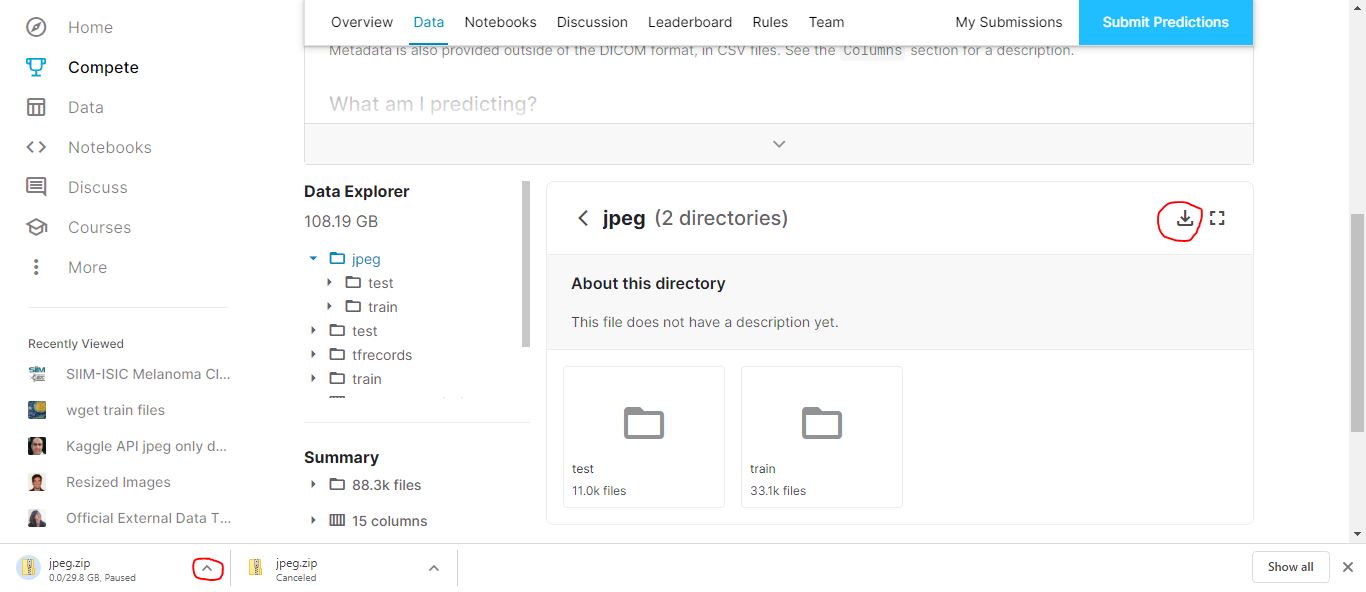\n\nClick on the link to start the download. After the download starts, pause it. Click on the arrow (circled) and click pause. \n\n**Step 2**\nOpen up downloads. On chrome, the shortcut is Ctrl + J. There, copy the download link of the file being downloaded. Image below for reference \n\n\n**Step 3**\nWe will now download the file using `wget`\n\nOpen up your editor, and use the following code to download the file \n\n`import wget`\n `url = {*Paste copied url here*}`\n` wget.download(url, 'data_path/train.zip')`\n\n*A key point to note here is that you have to specify the download path as `path/filename.zip`. Just providing the path won't work*. You can specify any name here. Doesn't have to be the same as Kaggle's name (jpeg.zip). Image below for reference \n\n\nThat's all. Now you can extract the file and proceed to train. Same steps for any other folder. Hopefully this helps some fellow practitioners out there 😄", "votes": null }, { "id": "871679", "postDate": "06/02/2020 15:09:11", "content": "It works, thank you!
", "rawMarkdown": "It works, thank you!", "votes": null }, { "id": "871730", "postDate": "06/02/2020 15:45:49", "content": "I wanted to add something to this, hopefully it would help beginners.
\n\nYou can resume broken Chrome downloads from Firefox. Here are some helpful links:
\n\n", "rawMarkdown": "I wanted to add something to this, hopefully it would help beginners.\n\nYou can **resume** broken Chrome downloads from Firefox. Here are some helpful links: \n\n- [UberGizmo Guide](https://www.ubergizmo.com/how-to/how-to-resume-chrome-download-using-firefox/)\n- [Mozilla Forums](https://support.mozilla.org/en-US/questions/1220917)\n- [Lifehacker Article](https://lifehacker.com/resume-a-failed-chrome-download-with-firefox-1655246429)", "votes": null }, { "id": "875073", "postDate": "06/05/2020 14:03:23", "content": "Alternatively, instead of using Python you could use wget in LInux terminal itself:\nwget -O \"./zip_name.zip\" \"url_to_download\"
Make sure to add the double quotes to include long urls.
", "rawMarkdown": "Alternatively, instead of using Python you could use wget in LInux terminal itself:\n`wget -O \"./zip_name.zip\" \"url_to_download\"`\n\nMake sure to add the double quotes to include long urls.", "votes": null } ], "comments": [ { "id": 871679, "author_name": "maximofn", "author_url": "", "post_date": "06/02/2020 15:09:11", "content": "It works, thank you!
", "votes": null, "replies": [] }, { "id": 871730, "author_name": "aadhavvignesh", "author_url": "", "post_date": "06/02/2020 15:45:49", "content": "I wanted to add something to this, hopefully it would help beginners.
\n\nYou can resume broken Chrome downloads from Firefox. Here are some helpful links:
\n\n", "votes": null, "replies": [] }, { "id": 875073, "author_name": "deep1845kaggle", "author_url": "", "post_date": "06/05/2020 14:03:23", "content": "Alternatively, instead of using Python you could use wget in LInux terminal itself:\nwget -O \"./zip_name.zip\" \"url_to_download\"
Make sure to add the double quotes to include long urls.
", "votes": null, "replies": [] } ], "raw_markdown_by_id": { "871465": "### Hi all. A lot of times, we need to download individual folders from a competition because we do not need all the files. \n###The API as of now does not support this so the only way I used to do this was to download each folder to my local system and then upload the same to the cloud server. Long process ☹️ \n\n###Recently while experimenting, I stumbled upon a neat little trick to get individual folders into my cloud server directly. Listing the steps below so that it may help anyone who needs it 😄 \n\n**Step 1:**\nIn this competition, I wanted only the JPEG folder. So click the JPEG folder and on the right side you will see a download link which looks like this: \n\n\nClick on the link to start the download. After the download starts, pause it. Click on the arrow (circled) and click pause. \n\n**Step 2**\nOpen up downloads. On chrome, the shortcut is Ctrl + J. There, copy the download link of the file being downloaded. Image below for reference \n\n\n**Step 3**\nWe will now download the file using `wget`\n\nOpen up your editor, and use the following code to download the file \n\n`import wget`\n `url = {*Paste copied url here*}`\n` wget.download(url, 'data_path/train.zip')`\n\n*A key point to note here is that you have to specify the download path as `path/filename.zip`. Just providing the path won't work*. You can specify any name here. Doesn't have to be the same as Kaggle's name (jpeg.zip). Image below for reference \n\n\nThat's all. Now you can extract the file and proceed to train. Same steps for any other folder. Hopefully this helps some fellow practitioners out there 😄", "871679": "It works, thank you!", "871730": "I wanted to add something to this, hopefully it would help beginners.\n\nYou can **resume** broken Chrome downloads from Firefox. Here are some helpful links: \n\n- [UberGizmo Guide](https://www.ubergizmo.com/how-to/how-to-resume-chrome-download-using-firefox/)\n- [Mozilla Forums](https://support.mozilla.org/en-US/questions/1220917)\n- [Lifehacker Article](https://lifehacker.com/resume-a-failed-chrome-download-with-firefox-1655246429)", "875073": "Alternatively, instead of using Python you could use wget in LInux terminal itself:\n`wget -O \"./zip_name.zip\" \"url_to_download\"`\n\nMake sure to add the double quotes to include long urls." }, "source": "meta" }